
Learn
Create an app





An app is the product you send notifications for. Create one, choose the stack it uses, then copy the setup into that app.
Name the app
Add an icon if you have one. PNG, JPG, and WebP work, up to 2 MB. The name is required. The description is optional.
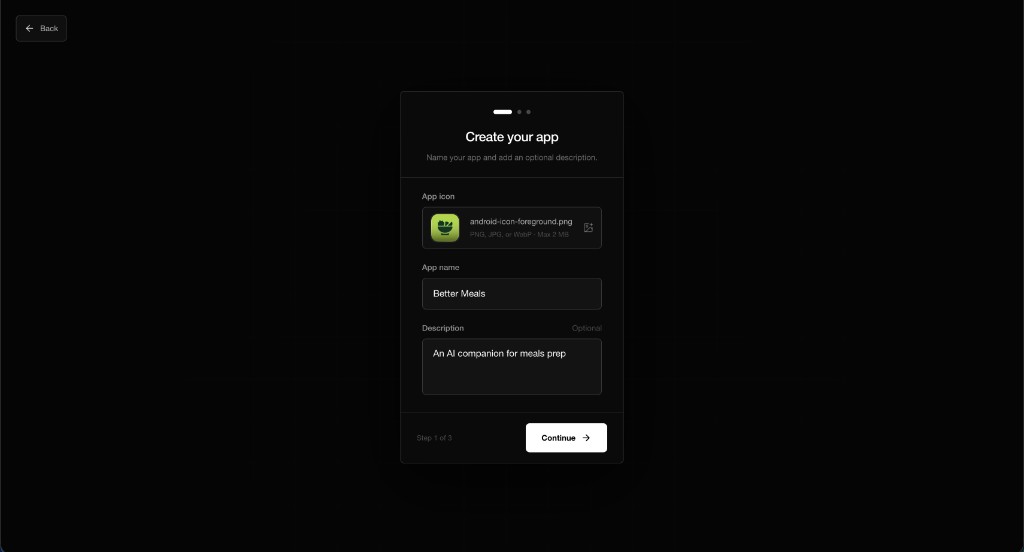
Choose Continue.
Choose a stack
Pick the SDK your app uses: Expo, React Native, Flutter, Swift, Kotlin, or Web. If none of those fit, choose Other.
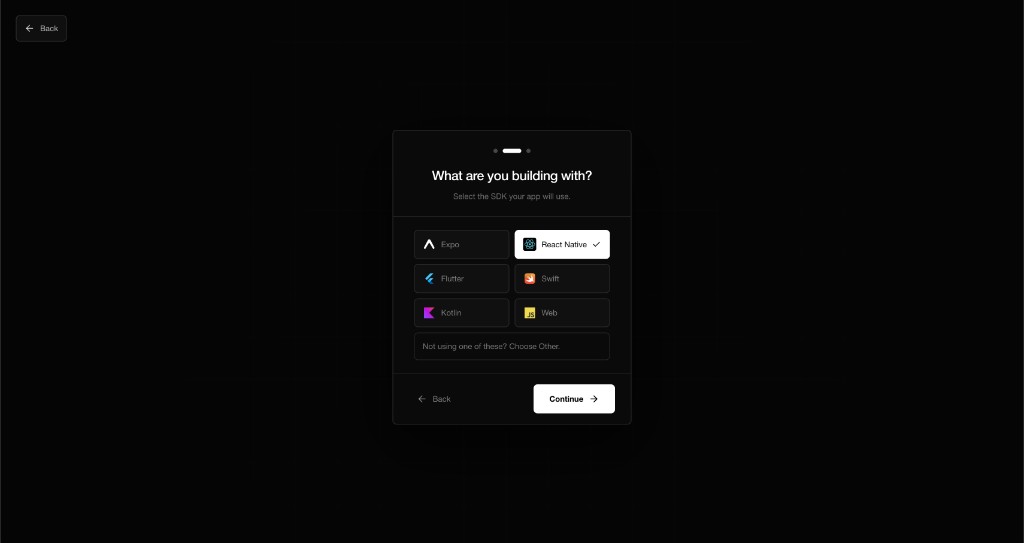
Choose Continue.
Copy the setup
Notifiable creates the app and shows a development public key, plus a snippet for the stack you picked. Copy the key or the whole snippet and put it in your app. That connects the app and registers the user.
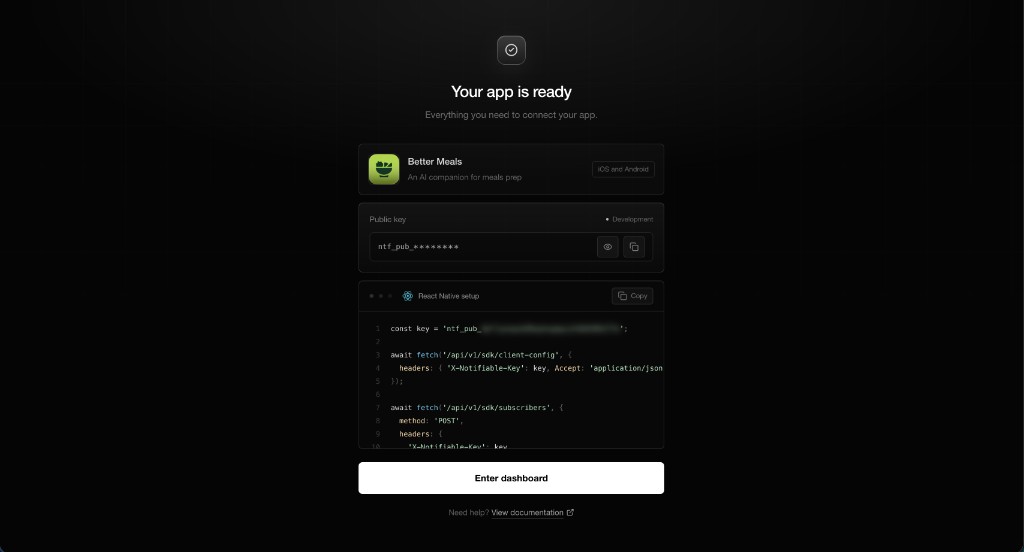
Choose Enter dashboard.
Open the dashboard
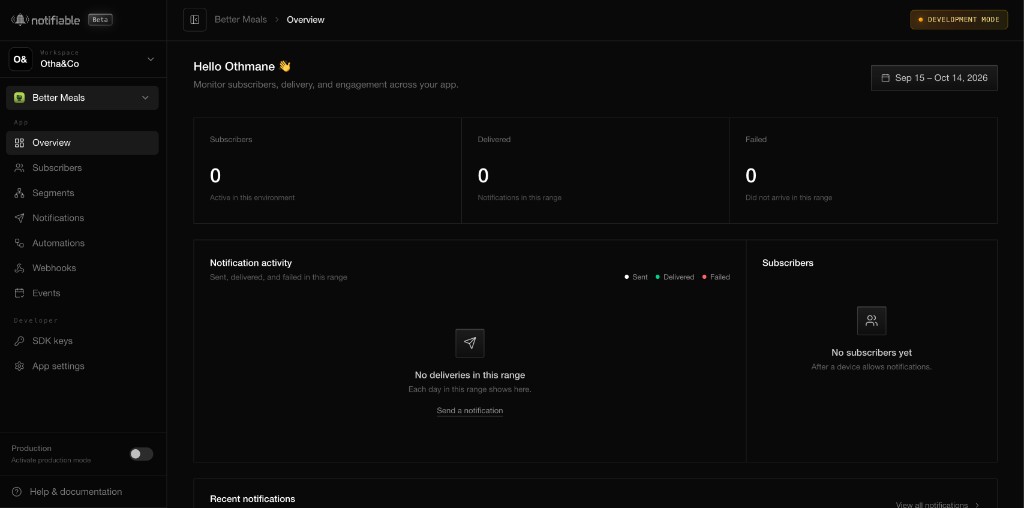
The overview is home for this app. It shows how many subscribers you have, what was delivered, and what failed. The sidebar opens subscribers, segments, notifications, automations, webhooks, and events.
The app opens in development. When you are ready for real users, turn on production from the switch at the bottom of the sidebar.
Next, configure delivery.