
Learn
Send a notification






On this page
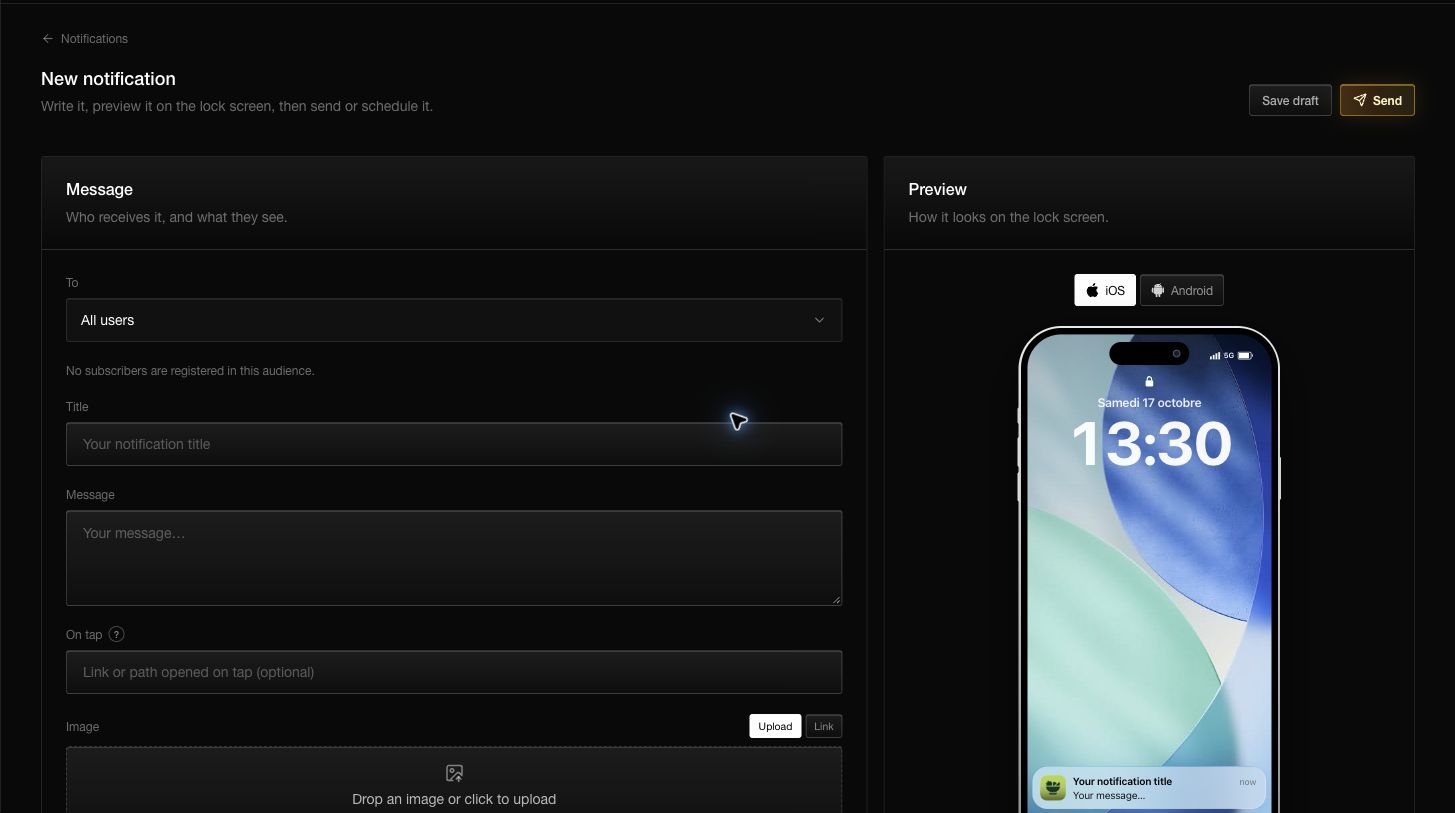
The notification composer brings the audience, message, behavior, and preview into one page. Before writing, confirm the app and environment in the dashboard header.
Compose the message
- Open Notifications and choose New notification.
- Choose an audience: all users, a segment, an event audience, or one subscriber for a test.
- Enter a short title and message.
- Optionally set the path or URL opened when the notification is tapped.
- Optionally upload a PNG, JPG, or GIF up to 1 MB, or provide an image URL.
- Leave Show an alert enabled for a visible push. Disable it only for a silent data notification.
- Check both the iOS and Android previews when the app supports both.
The composer reports how many subscribers are registered and how many are currently able to receive the selected audience.
Choose what happens on tap
Use a web URL for browser content or a deep-link path handled by your app. Notifiable adds the delivery identifier as the opt query parameter so the SDK or backend can associate a click with its delivery.
Before sending, open that link in a development build and confirm that it reaches the correct screen when the app is closed as well as when it is already open.
Test before a real send
In development, send to one known test subscriber first. Confirm that:
- the title and message fit;
- the image loads;
- the correct screen opens;
- an open and click are recorded;
- the delivery row has the expected outcome.
Send now or schedule
Choose Send and then select when the notification should go out:
- Now starts delivery immediately.
- UTC time schedules one fixed moment for everybody.
- Subscriber local time delivers when that clock time arrives in each subscriber’s timezone. Missing timezones use UTC.
Saving a draft does not send. A draft or scheduled notification can be cancelled while it has not started delivery.
Read the result
The detail page shows targeted, delivered, failed, skipped, and open-rate values. Open rate is unique opens divided by delivered notifications and remains blank until something is delivered.
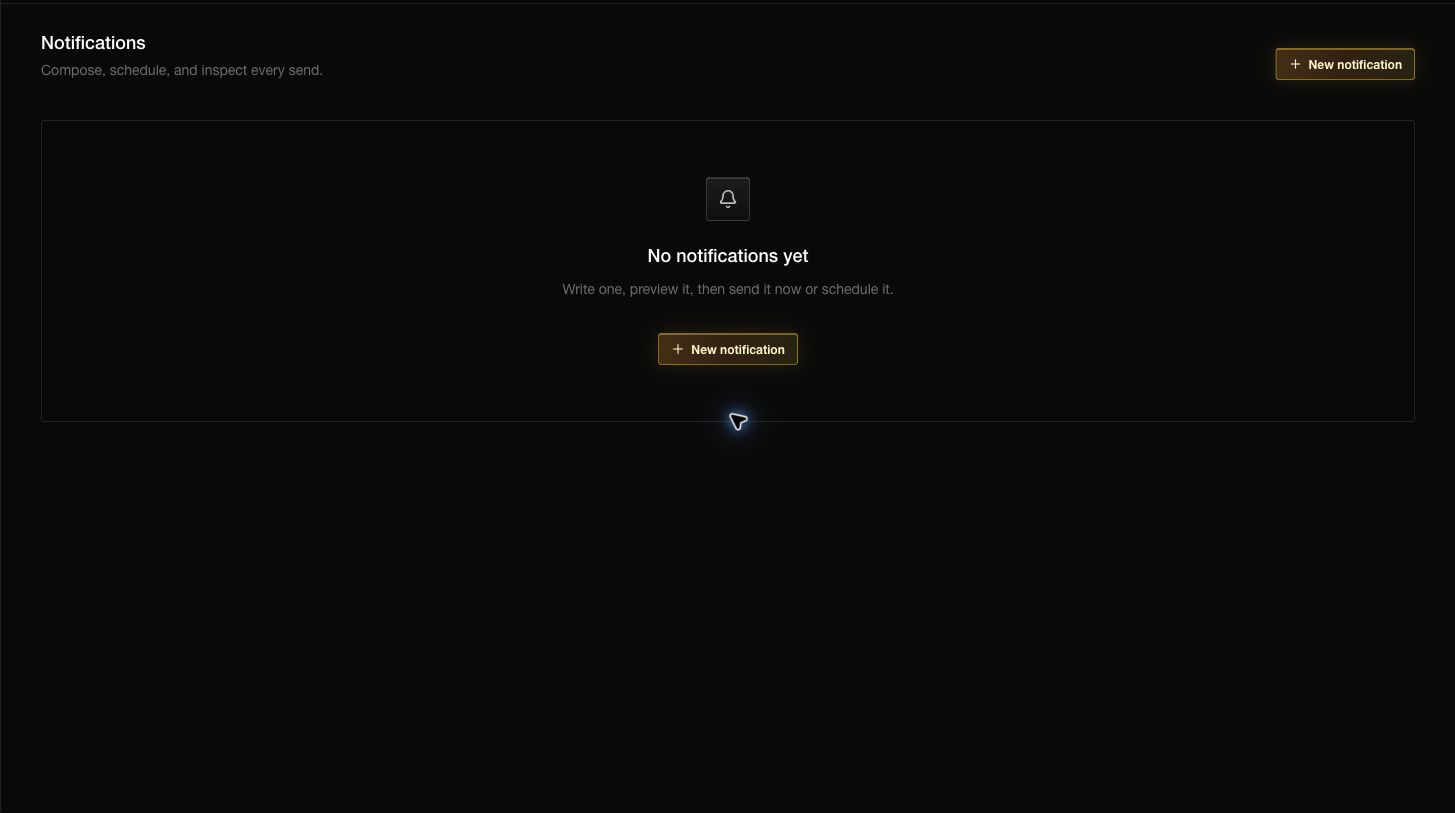
Inspect individual delivery rows when the totals look wrong. Missing provider configuration, an invalid token, denied permission, or a provider rejection can explain a failure.
Questions you may have
Why are fewer people accepting than registered?
Some records may be inactive, disabled, denied, missing a token, or missing a provider.
Can I edit the audience after scheduling?
Editing the segment does not change an audience already accepted for a notification.
What is a silent notification?
It carries data without showing a visible alert. Your application must know how to handle that data.
Can a public SDK key send?
No. Send from the dashboard or a trusted server using a server API key.