
Learn
Development and production







On this page
Every Notifiable app has two isolated environments. Development is for your team and test devices. Production is for the people using the released app.
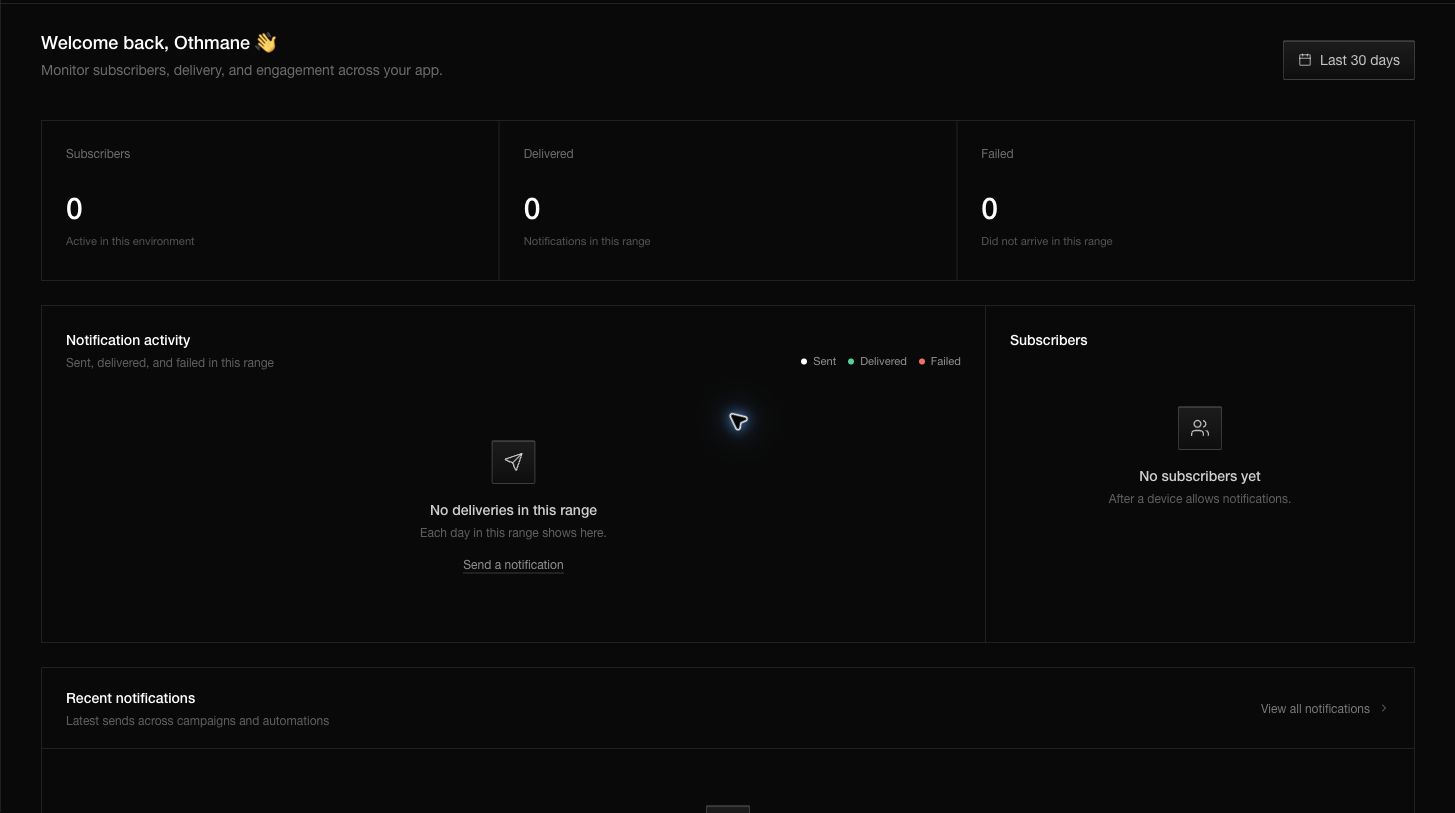
What the environment changes
The selected environment controls the subscribers, segments, notifications, workflows, events, webhooks, analytics, and public SDK key you see. A subscriber registered in development does not appear in production. A development segment does not select production subscribers.
The environment does not create a second app. The app name, icon, workspace, and delivery connection still belong to the same app.
Use development
Use development while you integrate an SDK, test permissions, inspect subscriber data, build an audience, or preview a notification. Development subscribers do not count against the production subscriber limit.
The normal test loop is:
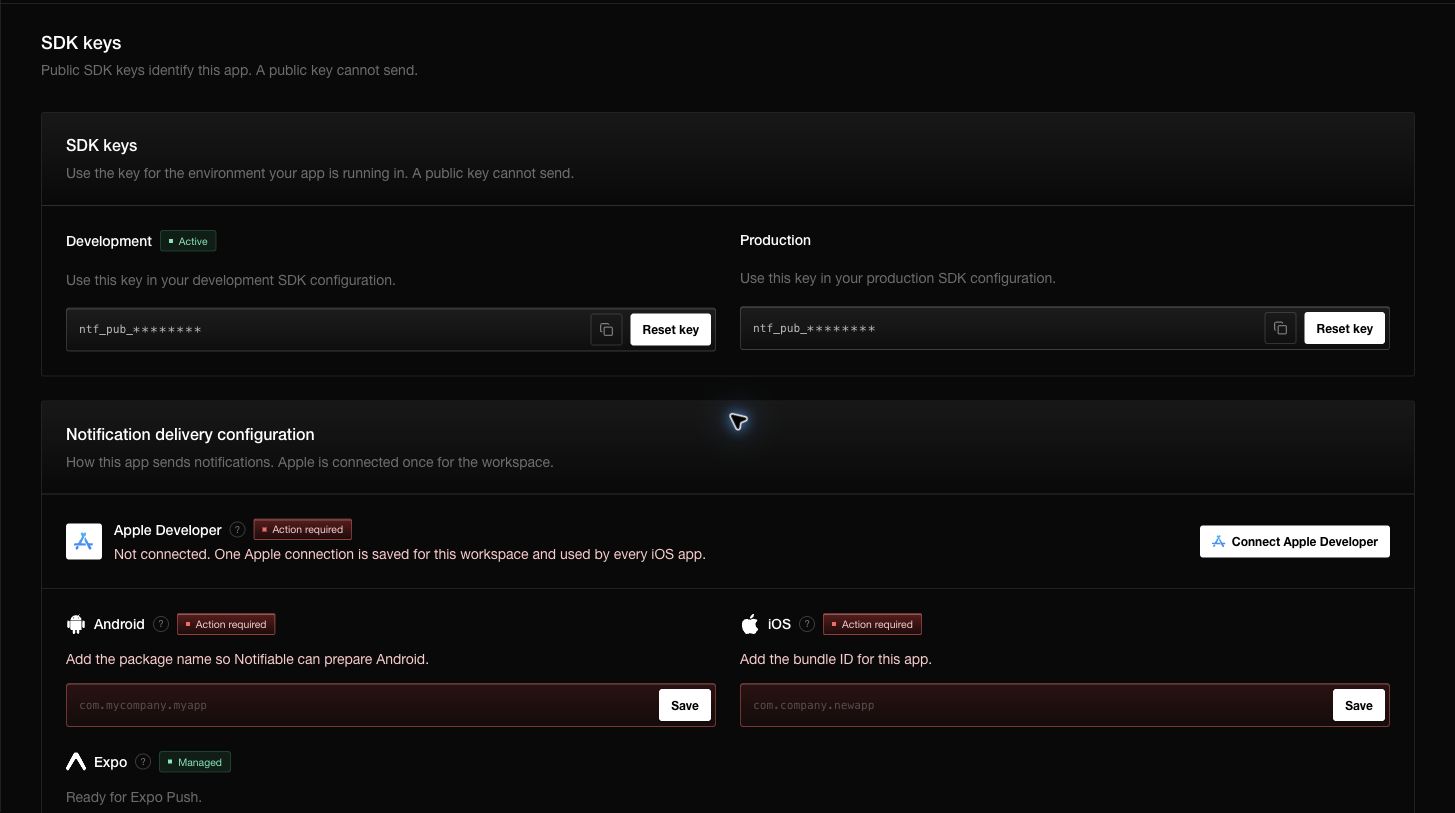
- Copy the Development public key from SDK keys.
- Configure a debug or local build with that key.
- Register a test device and confirm it appears in Development.
- Send only to that device or a small development segment.
- Inspect delivery, open, click, and event records.
Move to production
Before activating production, confirm that delivery is configured for every platform your released app uses.
Then:
- Copy the Production public key into the release configuration of your app.
- Build and distribute the release with that key.
- Activate Production from the switch at the bottom of the dashboard sidebar.
- Open the released app on a test device.
- Confirm that the new subscriber appears in Production.
- Send a small production test before sending to a large audience.
Activating the dashboard switch does not move development subscribers or messages into production. It changes which isolated dataset you are viewing and managing.
Keep keys separate
Treat the environment key as application configuration. A debug build should use the development key; an App Store, Play Store, or web production build should use the production key. Do not select a key from a runtime user setting.
Public SDK keys identify the app and environment. They are safe to include in a client app and cannot send notifications. A server API key is different: it can manage and send data and must remain on your server.
Questions you may have
Can I copy test subscribers into production?
No. Install or open the production build so each real device registers with the production key.
Why does production show zero subscribers?
The released app may still contain the development key, or no production build has registered a device yet.
Can a development notification reach production users?
No. Audiences and deliveries stay inside their environment.
Does Apple or Android configuration change per environment?
The public keys are separate. Delivery configuration belongs to the app or workspace and is reused as described on the SDK keys page.