
Learn
Explore the dashboard




On this page
The dashboard is the control room for one Notifiable app. It shows the environment you are working in, the people you can reach, and what happened to recent notifications.
Know what you are looking at
The top breadcrumb names the current app and page. The badge in the upper-right says Development mode or Production mode. Check that badge before changing subscribers, audiences, notifications, workflows, events, or webhooks.
The left sidebar has two groups:
- App contains Overview, Subscribers, Segments, Notifications, Automations, Webhooks, and Events.
- Developer contains SDK keys and App settings.
The app selector above the navigation changes which app you are managing. The workspace selector changes the workspace and therefore the apps, members, and server credentials available to you.
Read the overview
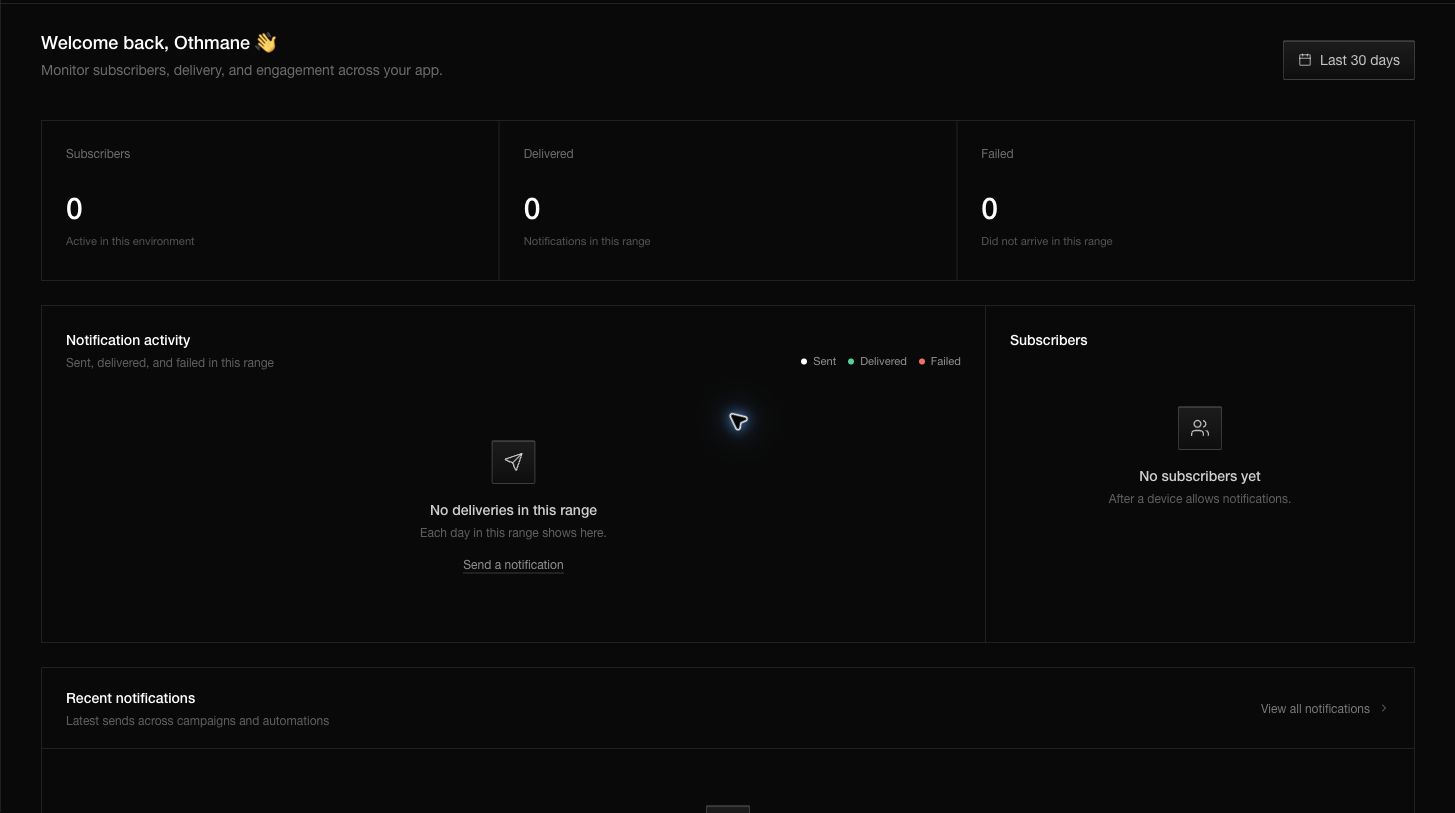
The first row summarizes the selected date range:
- Subscribers is the number of active subscribers in the current environment.
- Delivered is the number of provider-confirmed deliveries in the selected range.
- Failed is the number of attempts that did not arrive in that range.
The activity chart compares sent, delivered, and failed notifications over time. The subscriber panel summarizes the devices in this environment. Recent notifications combines campaigns and workflow sends so you can spot the latest result without leaving the overview.
Changing the date range changes the delivery metrics and chart. It does not change the environment or modify any data.
Choose the right page
| You want to… | Open… |
|---|---|
| See or manage reachable devices | Subscribers |
| Define an audience | Segments |
| Write, preview, send, or schedule a message | Notifications |
| React to an event or run a multi-step process | Automations |
| Receive delivery activity in your backend | Webhooks |
| Inspect activity recorded by the app | Events |
| Copy a public key or configure delivery | SDK keys |
| Change the app name, icon, platform, or identifiers | App settings |
Empty dashboard
A new development app normally shows zero subscribers and no delivery activity. That does not mean the app is broken. Complete these steps in order:
- Configure delivery.
- Install the SDK and use the development public key.
- Ask for notification permission on a test device.
- Open the app once so the SDK can register the device.
- Confirm that the device appears under Subscribers.
- Send a notification to that test audience.
Questions you may have
Why do I see no subscribers?
Subscribers appear only after an installed app saves a device. Asking for permission by itself is not enough if the app never sends the device to Notifiable.
Why are my production numbers missing?
Development and production are separate. Switch to Production only when you intend to inspect live data.
Does the overview combine all apps?
No. It belongs to the app named in the breadcrumb and to the currently selected environment.
What should I check before sending?
Confirm the app, environment, audience, delivery configuration, and preview—in that order.